
MCP for teams
How to use MCP across all your AI tools
A practical guide to connecting Claude Code, Cursor, ChatGPT, and more over MCP so every AI tool reads the same context, with the steps that actually matter.
You have got Claude Code in the terminal, Cursor in the editor, and ChatGPT in the browser. Each one is sharp on its own and clueless about your actual project. MCP is how you fix that across all of them at once, instead of pasting context into each tool forever. Here is how to actually do it.
Step 1: Get the model right about what MCP connects
Quick reset so the steps make sense. MCP, the Model Context Protocol, lets an AI tool read outside context and call tools through one standard. A client lives in your AI tool; a server sits in front of your context. Connect a tool to a server once, and it reads what fits the task at the start of a session. Full primer in what is MCP.
The important part for "across all your tools": one server can serve many tools. You do not wire each pair by hand.
Step 2: Know which surface each tool uses
This is the step people skip, and it is why their setup half-works. Tools connect over one of two surfaces:
- Local server for desktop tools. Claude Code, Cursor, and Windsurf run on your machine, so they talk to a local MCP server, low latency, works offline.
- Remote endpoint for web tools. ChatGPT and hosted agents run in the cloud and cannot see a server on your laptop, so they need a hosted URL.
If you only set up a local server, your web tools read nothing. If you only set up remote, you give up the low-latency desktop path. You want both. The full tradeoff is in local vs remote MCP servers.
Step 3: Connect the desktop tools
For a desktop tool, the pattern is the same across the board: point the tool at a local MCP server in its settings or config, then restart the session so it picks up the server.
- Claude Code reads MCP servers from its config; add the server and reopen.
- Cursor and Windsurf have an MCP section in settings where you add the server.
Once it is connected, the tool lists the server's tools and resources, and the model starts using them when the task calls for it. You will know it worked when the next answer reflects your actual project instead of guessing.
Step 4: Connect the web tools
For a web tool, you add a remote MCP endpoint. The pattern is paste a URL, sign in, authorize. The tool then reaches that hosted server over the network for every session. Before you point a hosted endpoint at company data, it is worth understanding whether MCP is secure and what the auth and scoping model gives you.
This is the step that brings ChatGPT and hosted agents into the same loop as your editor. No local install, just a URL and an auth step.
Step 5: Point everything at one shared context
Here is the step that separates a real setup from a pile of disconnected servers. Each tool can connect to MCP, but if Claude Code reads one source, Cursor reads another, and ChatGPT reads a third, you have rebuilt the silos MCP was supposed to remove. Three tools, three versions of the truth.
The fix is one shared context behind both the local bridge and the remote endpoint. Connect a new tool and it reads the same source as everything else, no re-curation.
And curate that context, do not dump into it. A raw export of every file you own makes the model wade through stale noise. The context worth connecting is structured and current: what is true (company, products, teams, projects, your area), what happened and what was decided, and what is next.
Step 6: Let write-back keep it current
The setup is not done when the connection works; it is done when it stays current on its own. The strongest pattern is read-and-write: tools read context at the start of a session and write a structured summary of activity, decisions, and tasks back as work happens. That way the next session, and the next teammate, start caught up instead of cold.
How BaseThread does all of this in one move
Doing steps 3 through 6 by hand, per tool, per person, is a chore that drifts. BaseThread collapses it.
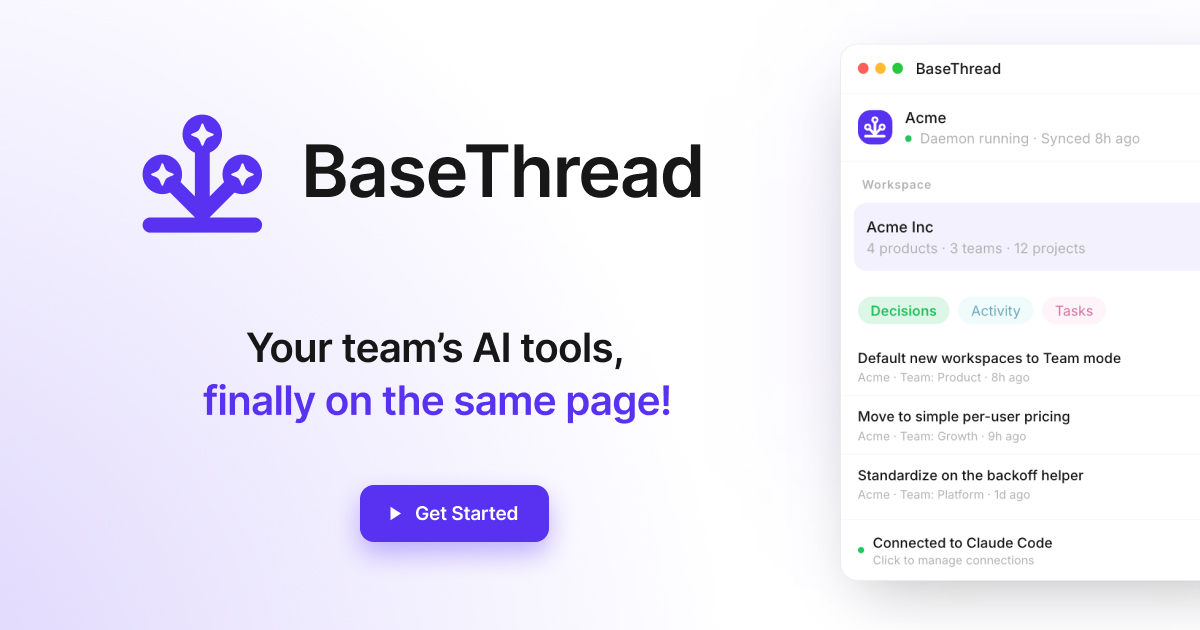
A native Mac app provides the local bridge for desktop tools at low latency. The remote endpoint at mcp.basethread.ai serves web tools and hosted agents. Both read the same curated context graph and the same running record of activity, decisions, and tasks, so connecting Claude Code, Cursor, and ChatGPT means all three read one source. Integrations with tools like Notion and HubSpot distill the signal from connected systems into that context instead of dumping it in, so what your tools read is the relevant part, not the firehose. Your tools read it at session start and write activity, decisions, and tasks back as work happens. For a team, this is the difference between five private setups and one context layer, see MCP for teams and the team setup guide.
The one thing not to skip
Connecting each tool to MCP is easy. Pointing them all at one shared context is the part that makes the answers agree. Skip it and you have nicer cables on the same old silos.
TL;DR
To use MCP across your tools: connect desktop tools (Claude Code, Cursor, Windsurf) to a local server, connect web tools (ChatGPT, hosted agents) to a remote endpoint, and, crucially, point all of them at one shared, curated context rather than separate sources. Curate that context instead of dumping into it, and let tools write activity, decisions, and tasks back so it stays current. BaseThread provides the local bridge and the remote endpoint over one source, so connecting any tool means it reads the same thing.
One curated context, read by every tool over MCP, written back as your team works.
Related reading
What is MCP (Model Context Protocol)? A 2026 guide
MCP is an open standard that lets AI tools read outside context and call tools through one protocol. Here is what it is, how it works, and why it matters.
Local vs remote MCP servers: which your team needs
Local MCP servers run on your machine, remote ones are hosted at a URL. Here is how they differ, which tools each suits, and why teams usually want both.
MCP for teams: one context layer across your AI tools
MCP for teams turns scattered docs and decisions into one context layer every AI tool reads, so Claude Code, Cursor, and ChatGPT share the same source.
How to set up a shared MCP context server for your team
Set up a shared MCP context server your whole team's AI tools read: curate the context, choose local or remote, connect tools, scope access, and let it update.
Frequently asked questions
How do I connect an MCP server to my AI tool?
It depends on the surface. For desktop tools like Claude Code and Cursor, you usually install or point to a local MCP server and add it in the tool's settings or config. For web tools like ChatGPT, you add a remote MCP endpoint by pasting its URL and signing in. Once connected, the tool reads the server's context and tools at the start of a session.
Can I use the same MCP server across Claude Code, Cursor, and ChatGPT?
Yes, that is the whole point of the standard. Any MCP-capable tool can read from any MCP server. The catch is the surface: desktop tools connect to a local server, web tools to a remote endpoint. With BaseThread both paths read the same curated context, so every tool sees one source.
Do I need to set up MCP separately for each tool?
You connect each tool once, but they can all point at the same context. The mistake is pointing each tool at a different source, which recreates the silos MCP was meant to remove. Use one shared context behind both the local bridge and the remote endpoint so connecting a new tool is just one step.
What context should I put behind MCP?
Curated, current context beats a raw dump every time. Put the structure that is true (company, products, teams, projects, your area), a running record of what happened and what was decided, and what is next. Let your tools write activity, decisions, and tasks back so it stays current instead of going stale.


