
MCP for teams
How to set up a shared MCP context server for your team
Set up a shared MCP context server your whole team's AI tools read: curate the context, choose local or remote, connect tools, scope access, and let it update.
Wiring up an MCP server for yourself is a weekend project. Setting one up that your whole team reads, that stays current, and that does not leak the wrong context to the wrong people, is a different task. Here is how to do the team version without building infrastructure from scratch.
What "shared" actually requires
A team MCP context server is not just one person's server that others happen to point at. To work for a team it needs four things a personal setup lacks:
- One curated source everyone reads, not a copy per person.
- Access control, so the company context and a single project's context are not the same blast radius.
- Both surfaces, local for desktop tools and remote for web tools, reading the same source. See what is a remote MCP server.
- Write-back, so the context updates as work happens instead of going stale.
This is the team layer described in MCP for teams. The steps below assume you want that, not a throwaway personal server.
Step 1: curate the context, don't dump it
Start with a focused source: the company and how it works, the products, the active projects, and the conventions you follow. A tight, current context beats a giant pile, both for answer quality and to avoid context rot. You can grow it later; do not front-load everything.
Step 2: choose local, remote, or both
- Local bridge for desktop coding tools (Claude Code, Cursor, Windsurf): low latency, works offline.
- Remote endpoint for web tools and hosted agents (ChatGPT and friends): reachable from anywhere.
- Both, pointed at the same source, is the usual answer. How BaseThread connects over MCP shows which tool takes which path, and local vs remote MCP servers breaks down when each surface fits.
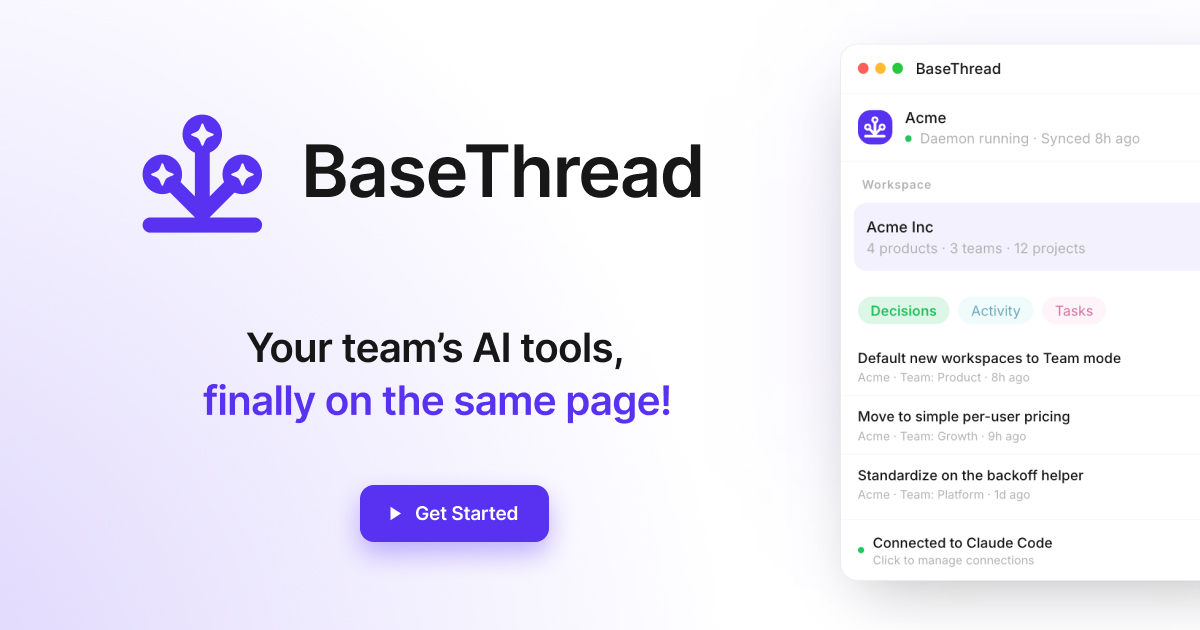
Step 3: connect the tools
Connect one tool first and confirm it reads the context, then roll out to the rest. Each tool connects once and reads the relevant slice at the start of a session, so there is no per-session setup after that.
Step 4: scope access by role
Decide who reads what. A team or project context should be readable by the people in it, and only its owners should change it. Good scoping is better context (each tool sees what is relevant) and better security (sharing one source never means everyone sees everything).
Step 5: turn on write-back
Have tools log what shipped and what was decided to the shared source as they finish work. This is what keeps the server current without anyone maintaining it by hand, and it is what makes the next teammate's session start caught up.
Step 6: bring the team on
Invite the team to read the same source. The moment two people's tools read it, you have a shared context layer rather than a personal server, and the answers across the team start to agree.
Build vs adopt
You can build all of this yourself with raw MCP, curation, an access model, a hosted endpoint, and a write-back path. Or use a platform that ships those parts, and spend your time on the context, not the plumbing.
TL;DR
A shared team MCP context server needs one curated source, access control, both local and remote surfaces, and write-back, not just a personal server others point at. Curate a focused context, choose local for desktop tools and remote for web tools (or both), connect one tool then the rest, scope access by role, turn on write-back so it stays current, and invite the team. Then every member's tools read one agreed source.
One curated context, local and remote, scoped and self-updating, read by every tool.
Related reading
MCP for teams: one context layer across your AI tools
MCP for teams turns scattered docs and decisions into one context layer every AI tool reads, so Claude Code, Cursor, and ChatGPT share the same source.
What is a remote MCP server (and when teams need one)?
A remote MCP server is a hosted endpoint any AI tool can connect to over the network. Here is how it differs from a local server and when a team should use it.
What is shared context for AI tools? (2026 guide)
Shared context for AI tools is the company, project, and decision background every AI reads automatically, so your whole team's tools stop guessing.
RAG vs MCP: when to retrieve, when to share context
RAG retrieves chunks from documents; MCP connects tools to live context and actions. Here is the real difference, when to use each, and how they work together.


